












































Pop!_OS — The System for NVIDIA GPUs

Pop!_OS was created to solve the biggest historical problem in Linux gaming: NVIDIA drivers. System76, a Linux hardware manufacturer, has created a distribution where proprietary drivers are first-class citizens, not just a stopgap solution.
- Dedicated NVIDIA ISO: proprietary drivers already integrated from the first boot
- Functional HDR with KDE Plasma on Wayland — the game-changer in 2025
- Hybrid Graphics Switch: switch between integrated GPU and NVIDIA without rebooting
- Based on Ubuntu LTS: maximum compatibility and a massive community
- Proprietary COSMIC Desktop in Rust: fast, smooth, low on resources
- No repository conflicts or GPG errors
Nobara — Uncompromising Performance

Nobara is the distribution created by the developer behind Proton-GE. The person who best understands the challenges of gaming on Linux has built their own operating system to solve them all at once.
Gaming kernel with Fsync, futex2 and BORE scheduler for lower latency
OBS Studio with low-latency patches — ideal for streamers
Wine and Winetricks pre-installed with all dependencies
MangoHud pre-configured for monitoring FPS, GPU and temperature
The Terra repository may cause occasional GPG errors on new installations
Bazzite — A Console Experience on Your PC

If you’ve ever wanted the simplicity of a console combined with the power of a gaming PC, Bazzite is exactly that. It’s the spiritual successor to SteamOS for desktops.
Atomic updates: if something goes wrong, it automatically reverts to the previous state
Proton-GE pre-installed and configured from the outset
Steam Deck-style gaming mode included — ideal for TV and controller
Immutable system: you can’t corrupt it with incorrect installations
Limited customisation compared to Pop!_OS and Nobara
-


Linux-2025
Price range: 49 € through 99 € Select options This product has multiple variants. The options may be chosen on the product page
-

Motorola Edge 60 Neo
Sale! Price range: 299 € through 319 € Select options This product has multiple variants. The options may be chosen on the product page -

Edge 70 Fusion 7000mAh
Sale! Price range: 349 € through 399 € Select options This product has multiple variants. The options may be chosen on the product page -

Motorola Moto G77
Sale! Original price was: 349 €.299 €Current price is: 299 €. Select options This product has multiple variants. The options may be chosen on the product page -

Moto G86 Power
Sale! Price range: 199 € through 279 € Select options This product has multiple variants. The options may be chosen on the product page -

OPPO Find X9 Pro
Sale! Original price was: 1,299 €.1,099 €Current price is: 1,099 €. Select options This product has multiple variants. The options may be chosen on the product page -
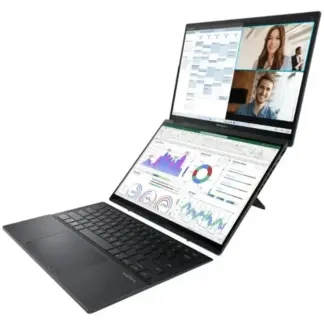
ASUS ZenBook Duo
Sale! Original price was: 2,299 €.1,999 €Current price is: 1,999 €. Select options This product has multiple variants. The options may be chosen on the product page -
Lenovo ThinkBook 16 G6
Sale! Price range: 699 € through 849 € Select options This product has multiple variants. The options may be chosen on the product page -
ThinkPad E14 G6
Sale! Price range: 849 € through 1,069 € Select options This product has multiple variants. The options may be chosen on the product page -
Lenovo Yoga Book 9i
Sale! Price range: 1,849 € through 1,999 € Select options This product has multiple variants. The options may be chosen on the product page -

OPPO Reno 15
Sale! Price range: 349 € through 699 € Select options This product has multiple variants. The options may be chosen on the product page -
iPhone 16
Sale! Price range: 699 € through 949 € Select options This product has multiple variants. The options may be chosen on the product page -

iPhone 17 Pro
Sale! Price range: 1,199 € through 1,649 € Select options This product has multiple variants. The options may be chosen on the product page -

Google Pixel 10 Pro
Sale! Original price was: 999 €.749 €Current price is: 749 €. Select options This product has multiple variants. The options may be chosen on the product page -
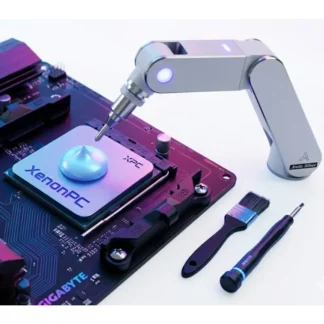
Thermal paste for laptops and computers
Sale! Original price was: 90 €.30 €Current price is: 30 €. Add to basket -

Motorola Signature
Price range: 899 € through 949 € Select options This product has multiple variants. The options may be chosen on the product page -

Motorola Edge 70
Sale! Price range: 499 € through 529 € Select options This product has multiple variants. The options may be chosen on the product page

ThinkPad laptops with longer battery life
In this 2026 update, we’ve selected the ThinkPad laptops with the best battery life in 2026. This range continues to stand out for offering an
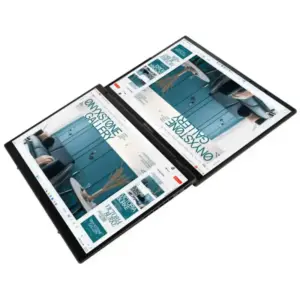
ASUS ZenBook Duo vs Yoga Book 9i Comparison
The ASUS Zenbook DUO and the Lenovo Yoga Book 9i represent the new generation of dual-screen OLED laptops, designed for advanced productivity, multitasking and premium

The history of Lenovo
1984 – The Birth: ‘New Technology Developer Inc.’ Lenovo was founded on 1 November 1984 in Beijing, China. The founding team consisted of eleven engineers